
The list that only grows
Add a title to My List, watch it, and it stays there. Finishing it does not take it off. And on a computer, Netflix removes titles from My List one at a time: hover over a title, click remove, move on to the next.
For a few titles that is fine. After a few years of saving things, it is not. A list that started as "things I want to watch" fills up with things you already watched, and the ones you still mean to see get buried among them.
People ask for this constantly
Start typing "how to clear my list on Netflix" into Google and the suggestions fill in with variations, mass deleting and clearing among them. "Netflix remove watched from my list" fills in too. The answers that rank for these all say the same thing: one title at a time. When I looked in September 2026, I could not find a single video showing how to remove only what you have already watched.
A commenter on Hacker News explained why their list never shrinks: "I never prune the list", because removing one title sent them back to the beginning of it. And on r/netflixindia, someone described starting titles they had already watched, and asked for a way to mark what they had seen.
Netflix does know what you have watched
This is the frustrating part. When I looked at what Netflix's website carries for the titles on a list, in August 2026, it had a watch status for shows (never watched, started or completed) and how far you got into each film. My List just does not use any of it.
Continue Watching is no help here either. Netflix takes a title off that row once you finish it, so a title missing from it could be one you never started or one you completed.
What Netflix offers
- On a computer: remove titles one by one.
- On a phone: since 2023, the Netflix apps can filter My List by Started and Haven't started. That helps you find what you have not begun, but removing is still one title at a time.
- Viewing activity: your account's viewing activity page lists what your profile has watched, so you can check a title against it by hand.
The other workarounds
- Do it by hand, a little at a time. Ten titles a night gets there eventually.
- Auto-clickers and scripts. The only "all at once" answers I found were an auto-clicker video from 2019 and a script you paste into the browser's console, whose comments say it stopped working in 2023. Pasting a stranger's code into a page where you are signed in is a risk worth taking seriously anyway.
How TidyWL for Netflix handles it
I build TidyWL for Netflix (on the Chrome Web Store as Watch Later Tidy for Netflix), so weigh this part with that in mind. It uses the watch state Netflix already has.
- Sync once. Open the dashboard with Alt+L on any Netflix page and press Sync. It reads your list and whether you have watched each title, for films and for shows.
- Filter to what you have watched. The Filter menu narrows My List by whether you have already watched it, alongside genre, type, IMDb rating and runtime.
- Tick and review. Tick as many titles as you like, then review the exact list before anything happens.
- Clear them in one run, with a receipt when it is done.
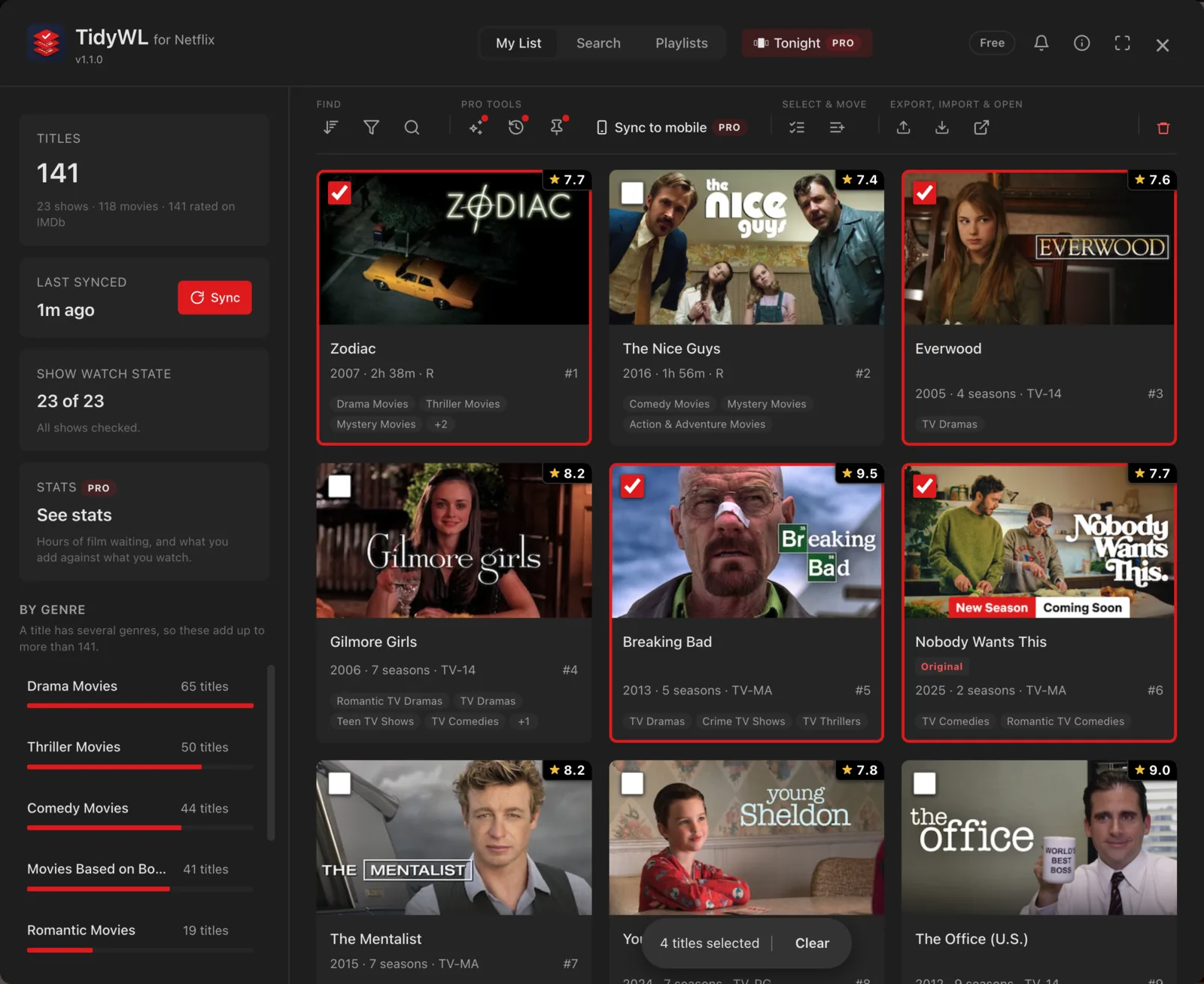
One thing to be clear about: removing a title here removes it from your My List on Netflix, everywhere, because it is the same list on Netflix's side. If you would like a record first, export the whole list, or just what you filtered down to, as CSV or JSON before you start.
It is free, needs no account, runs in Chrome on a computer, and is not made by or affiliated with Netflix. Add Watch Later Tidy for Netflix to Chrome.
 2:18
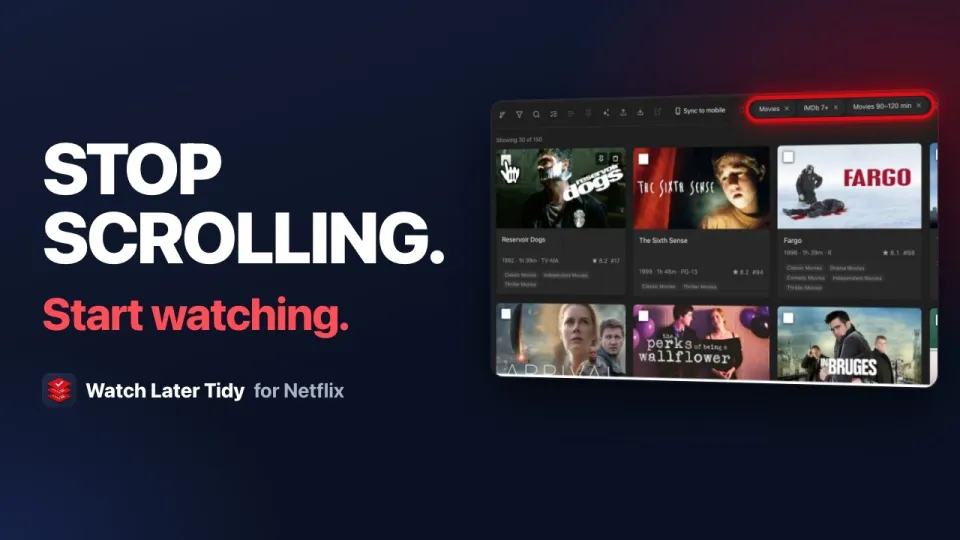
VideoHow I Stopped Wasting Time Picking a Netflix MovieThe dashboard and its Filter menu on a real My List.
2:18
VideoHow I Stopped Wasting Time Picking a Netflix MovieThe dashboard and its Filter menu on a real My List.