TidyWL Pro for Netflix
This section covers TidyWL Pro for Netflix: how to start it, then what it adds, each marked Pro. Pro starts with 7 days free, card required: cancel before day 8 and you pay nothing. Then it is $3.99 a month or $29.99 a year, in US dollars before tax. Every charge has a 14-day full refund. Everything free stays free. See pricing and what Pro does.
Start Pro, and use it in more than one browser
Header → the plan badge (Free) → About's Pro tab
- Click Free in the dashboard header. It opens About on its Pro tab. Any control marked Pro opens the plans card instead.
- Press Upgrade to Pro. Checkout opens on tidywl.com, handled by Paddle.
- When it is done, Pro switches itself on in that browser. There is no key to copy or paste.
- The page you land on after paying shows your key. It is not emailed, so keep it somewhere safe.
- In another browser, open About's Pro tab, press Have a key?, paste the key, check the name under Name this browser, and press Activate.
One key works on up to three browsers. About's Pro tab lists them. Remove beside one frees it, and Deactivate releases the browser you are in.
Manage subscription is where you cancel, change your card or see invoices.
Lost your key? Paste the Transaction ID from any Paddle receipt, the one that starts with txn_, into the same box. Or use Find my key on the key page.
Pro is a key, not an account. There is no password, and TidyWL never learns your email. Paddle takes the payment.
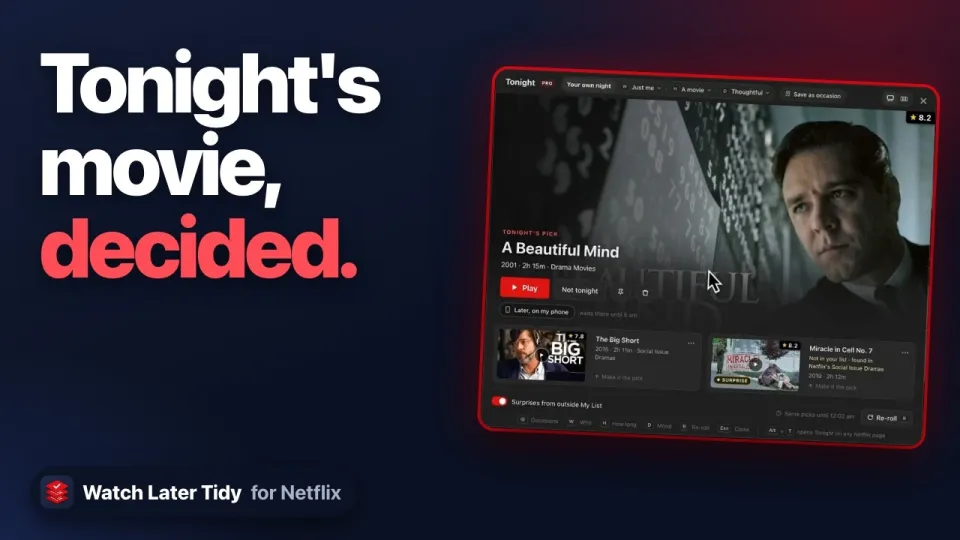
Tonight: one pick and two backups from your list Pro
Header → Tonight · Alt+T on any Netflix page · with Pro, the Pick for me button on Netflix's browse pages
- Open Tonight. Tap a night you have saved, or Something else to answer three questions, one tap each:
- Who's watching?: Just me, With a partner, With friends or With family. With family, it asks the youngest viewer's age and leaves out anything rated above it.
- How long have you got?: Short, A movie or Any length.
- What mood?: Light, Gripping, Thoughtful, Comfort or Anything.
- Tonight deals one pick and two backups from My List, each with its reason: the IMDb rating, the runtime, the genre that fits.
- Press Play to watch the pick. Make it the pick swaps a backup in. Not tonight hides a title for seven days. Re-roll deals three more for the same answers.
- Save as occasion keeps a night's answers, so next time it is one tap. Just like last time repeats your last answers.
Your answers and picks hold for the evening. The foot says until when, after "Same picks until".
With Surprises from outside My List switched on, Tonight also adds titles from outside your list that fit your mood, each marked as a surprise, and never one you have already watched or given a thumbs down. Switch it off to keep to My List.
Later, on my phone keeps the pick at the top of the TidyWL phone app until 5 am. There is no alert: open the phone app and it is there. It needs mobile sync.
On a Kids profile, Tonight asks two questions, not three.
 0:45
VideoWhat to Watch on Netflix Tonight? Let Your Own List DecideWho's watching, how long and the mood, then one pick and two backups.
0:45
VideoWhat to Watch on Netflix Tonight? Let Your Own List DecideWho's watching, how long and the mood, then one pick and two backups.
Undo a removal, for 90 days Pro
The removal summary's Undo · Toolbar → Pro tools → Removal history
- Right after a removal, the summary offers Undo beside Done. Press it to put that whole run back. If some titles could not be removed, Retry takes its place.
- Later, press Removal history in the toolbar. It lists what you removed from My List in the last 90 days, newest first.
- Press Put back on a title, or Put back all on a batch. Or tick several and press Put back at the foot. Search removed titles… finds one.
- Forget takes the ticked titles off this list, and Empty the list clears it. Neither changes Netflix.
A title you put back goes back on My List, and Netflix puts it at the top.
The history is kept on this device. It does not travel to your other browsers.
Pin a title so nothing removes it Pro
The pin on a card's art · Toolbar → Pro tools → Pin selected
- Hover a card on My List. A pin appears at the bottom-right of its art. Click it.
- Or select several titles and press Pin selected. When every selected title is already pinned, the same button unpins them.
- A pinned card keeps its pin showing. Click the pin again to unpin.
A pinned title survives every removal: a bulk remove you run yourself, a single Remove, the clean-up rules, and Move, which copies it and leaves it in My List. To remove one, unpin it first.
Unpinning never needs Pro, and a pin you already made keeps protecting its title whatever your plan. Filter → Pins is free.
Clean-up rules Pro
Toolbar → Pro tools → the sparkles (Clean-up rules)
Two rules, each one item in the menu. Both only select: you see the list and can untick anything before a title moves. Both move titles into a playlist rather than just removing them, and neither touches a pinned title.
Archive what I've watched
- Open Clean-up rules and pick Archive what I've watched….
- The list shows every title you have watched. Untick anything you want to keep.
- Press Archive. The ticked titles move to a playlist called Watched and leave My List.
Archive what has waited six months
- Open Clean-up rules and pick Archive what has waited six months….
- The list shows titles you never started that have sat in My List for six months or more. Untick anything you want to keep.
- Press Archive. The ticked titles move to a playlist called Someday and leave My List.
Netflix keeps no date on My List, so TidyWL counts six months from the day it first saw each title. When nothing qualifies yet, it says the first date anything could.
Leaving My List is a real removal on Netflix, but nothing is lost: the playlist keeps the titles, and any of them can be added back.
Stats Pro
My List sidebar → Stats
- The Stats card shows the hours of film still waiting in your list. Click it.
- Stats opens with Film still to watch, Shows, Watched and Never started.
- Below them, Added, watched and removed shows what you added against what you watched, month by month.
Netflix keeps no date on My List, so the monthly counts start from your first Sync with Stats in the extension, and grow with each Sync after.
Your playlists on your phone and in your other browsers Pro
Toolbar → Pro tools → Sync to mobile · About's Pro tab
- Press Sync to mobile in the toolbar. It opens About's Pro tab.
- Turn on Sync playlists to your phone and other browsers. Do the same in each browser you use, such as Chrome, Brave, another Google account or another computer, with your key active there.
- Press Pair a phone. Point your phone's camera at the code, or open tidywl.com/netflix/app on the phone and enter the code shown.
- The phone shows the playlists of every profile you have synced, box art and all. Tap a title and it opens in the Netflix app.
The phone is read-only. Playlists are edited on your computer.
With the switch on, that profile's playlists, with each title's name, year and picture link, and the profile's name, go to tidywl.com. Only from browsers where you switched it on. Your Pro key never reaches your phone.
Sync now beside the status line syncs at once. Each paired phone is listed under Phones with Remove.
Support answered first Pro
About's Pro tab
Questions and feature requests go to support@tidywl.com, the address About's Pro tab shows, and Pro is answered first. Everyone can write there, and About also has Join us on Discord and Thoughts?, which opens an email and copies the address.