
I have used Netflix for years, and too many evenings went the same way. I opened it wanting to watch something. I scrolled. I opened a few titles to read about them. I scrolled some more. And a long time later, I still did not know what to watch.
Three things kept wasting that time. So I built a Chrome extension for them. It is called TidyWL for Netflix, and on the Chrome Web Store you will find it as Watch Later Tidy for Netflix.
The scrolling
Netflix shows you a picture and a name. To learn anything else about a title, such as how long it is, when it came out or whether it is any good, you have to click into it. So I clicked in, one title after another, and the evening went by while I was still choosing.
Looking up IMDb, one title at a time
Netflix has its own thumbs, but I wanted to know what IMDb thought of a title before I started it, and Netflix does not show IMDb ratings. So every title that looked interesting meant a new tab, a search on IMDb, a look at the score, and back to Netflix for the next one.
A list full of things I had already watched
My List only grows. After years of adding titles, mine was full of films and shows I had already finished, mixed in with the ones I still meant to see. Netflix's website removes titles one at a time, so clearing them out by hand was never going to happen, and the list got harder to choose from every month.
What I built for each one
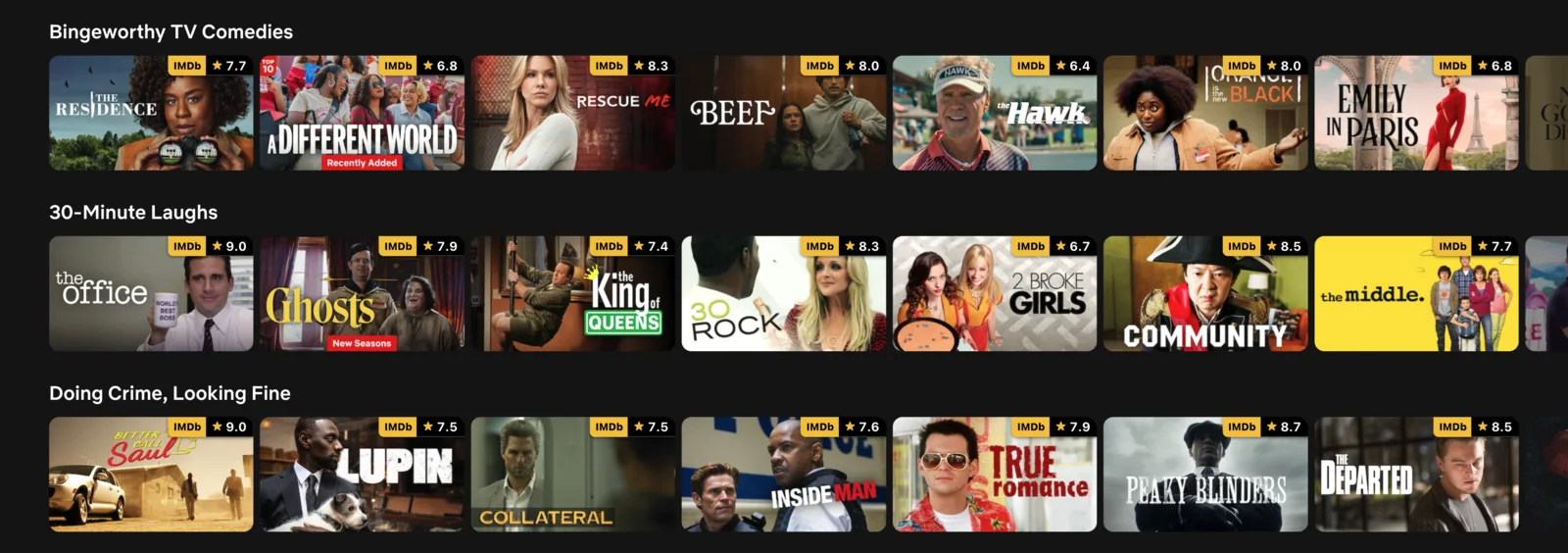
For the IMDb lookups: the IMDb rating now sits on Netflix's own pages. On the home page, in search and in every category, a title's picture carries its IMDb rating in the top-right corner. Click the rating and the title opens on IMDb. A title with fewer than 100 votes on IMDb gets no rating, because a rating from a handful of people misleads more than it helps.
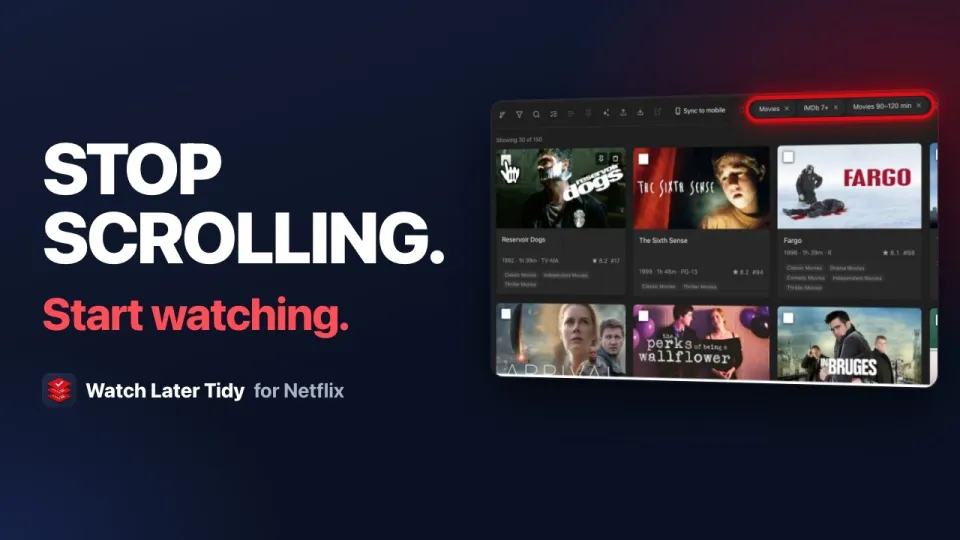
For the scrolling: press Alt+L on any Netflix page and your whole My List opens as a grid of cards. Each card carries the IMDb rating, the runtime, the year, the genre and the maturity rating, which are exactly the things I used to click in for. You can filter by genre, type, IMDb rating and runtime, and sort by rating, runtime, year or title.
For the watched titles: press Sync once and it reads which titles on your list you have already watched, for films and for shows. Filter to those, tick them, look over the exact list, and clear them in one go. They come off your My List on Netflix itself, which is the same list on every device, so the review step is there on purpose.
For the moment itself, when you just want something to put on, there is Tonight. You say who is watching, how long you have and what you are in the mood for, and it picks one title from your list and two backups, each with its reason: the IMDb rating, the runtime, the genre that fits. Press Alt+T on any Netflix page. Tonight is part of Pro.
 2:18
VideoHow I Stopped Wasting Time Picking a Netflix MovieFrom a long My List to a short list of films worth watching, in a couple of minutes.
2:18
VideoHow I Stopped Wasting Time Picking a Netflix MovieFrom a long My List to a short list of films worth watching, in a couple of minutes.
Free, with an optional Pro
Everything above except Tonight is free, with no account and no sign-in. Pro is optional. It is for the things a browser cannot do by hand, such as Tonight, an Undo for what you remove, and your playlists on your phone. It starts with 7 days free.
TidyWL for Netflix runs in Chrome on a computer. It never asks for your Netflix password, it never touches playback, and it is not made by or affiliated with Netflix or IMDb.
If your evenings look like mine did, add Watch Later Tidy for Netflix to Chrome. Everything it does is on one page.